 iPhone
 iPad
iPad MacBook
 iMac and Mac
 Apple Watch
 Samsung
 Xiaomi
 Huawei
 OPPO
OPPO PlayStation
Key points
- Look for dead pixels and spots with full-screen black, white, red, green and blue images.
- Hold an icon and drag it to every corner to test touch.
- Check whether True Tone appears in Settings › Display & Brightness.
- Parts and Service History in Settings › General › About shows whether the screen was replaced.
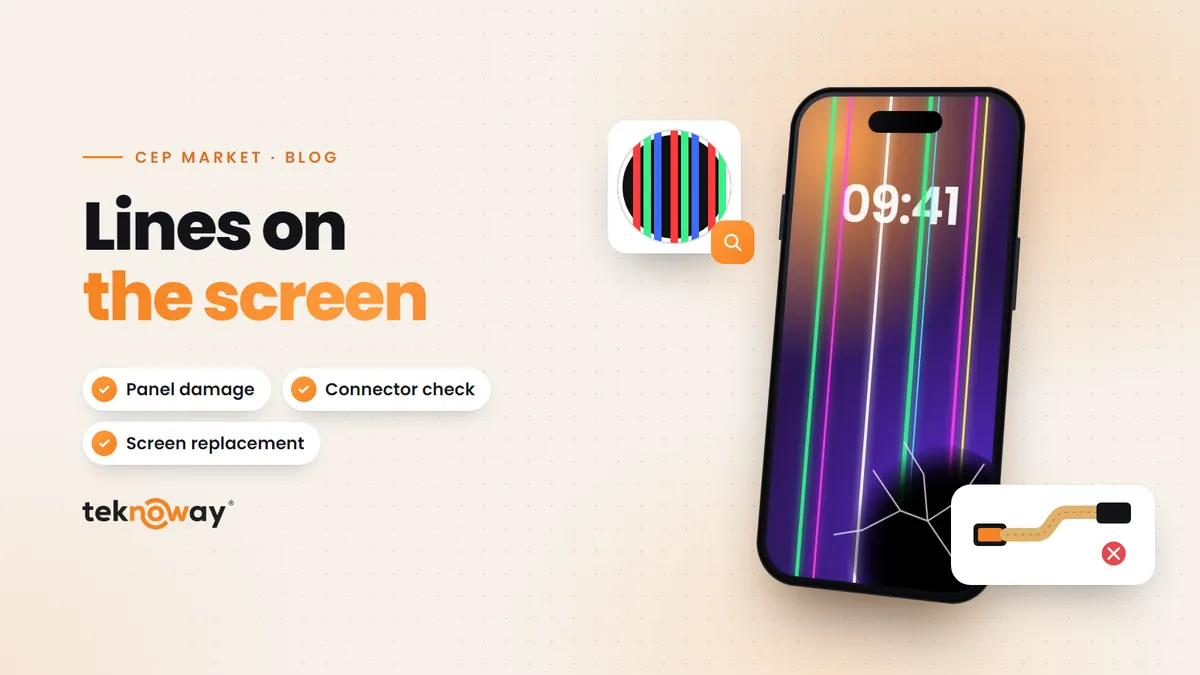
- If there are spots, lines or dead touch areas, the screen should be checked.
01Picture test: dead pixels and spots
- Set brightness to maximum.
- Open solid colour images. Open full-screen black, white, red, green and blue images in turn.
- Inspect the screen. Look for bright dots on black, dark dots on white, yellow or pink tints and lines.
- Check the edges. Look for colour changes or light bleeding at the edges.
02Touch test
- Hold an icon on the Home Screen. When the icons start to jiggle, hold one icon.
- Drag it around the screen. Move it to the corners and edges; if it drops somewhere, touch is weak there.
- Keyboard test. In Notes, press every key and check that each responds.
03Has the screen been replaced?
| Check | Where |
|---|---|
| Parts and Service History | Settings › General › About |
| True Tone option | Settings › Display & Brightness |
| Gaps or adhesive marks at the edges | Visual check |
For second-hand checks, see how to tell if an iPhone is a replacement. Choose your model on our iPhone models page.
Brand › Model › Repair listChoose your model, ask about the faultiPhone models