Skip to content
Söğütlüçeşme · Kadıköy / Istanbul Free two-way shipping across Turkey
Closed now · opens today at 09:30Closed · opens at 09:30 +90 537 958 02 02 TREN
Blog2 min read

How to transfer phone contacts to a SIM card: Android and iPhone

On Android phones you can copy contacts to the SIM card in a few taps. iPhone does not save contacts to the SIM; it can only import contacts from it. Here are both methods step by step, plus safer ways to keep your contacts.

Cep Market Repair TeamIn Kadıköy since 2006
Key points
  • On Samsung: Contacts › Manage contacts › Import or export contacts › Export › SIM card.
  • Only the name and one number are copied to the SIM; email, photos and extra numbers are not.
  • iPhone does not save contacts to the SIM; Settings can only import contacts from it.
  • For a lasting backup, Google account sync on Android or iCloud sync on iPhone is safer than the SIM card.
  • If your phone does not detect the SIM card, diagnosis at our store is free.

01Why copy contacts to the SIM card?

Copying numbers to the SIM card keeps your contacts somewhere separate from the phone. When you put the SIM into another phone, the numbers come with it. This helps when you change phones, reset a phone or leave it for repair. Still, a SIM card has limited space and stores only basic details.

02Copying contacts to the SIM on a Samsung phone

On Samsung Galaxy phones you do this in the Contacts app. Menu names may differ slightly between software versions.

  1. Open Contacts. Tap the three-line menu at the top left.
  2. Choose Manage contacts. Then tap Import or export contacts.
  3. Tap Export. Choose the SIM card as the destination; on dual-SIM phones, make sure you pick the right SIM.
  4. Select the contacts. Tick the contacts you want to copy and confirm.

Afterwards, you can show the SIM card contacts in the Contacts app and check the numbers.

03Other Android phones

On Xiaomi, Huawei, OPPO and other Android phones the steps are similar, but the menu names differ. In your Contacts app, look for:

  • An Import / export or Manage contacts menu.
  • A SIM card option as the destination.
  • Some phones only offer import from SIM; if there is no option to write to the SIM, sync your contacts to your Google account instead.

04SIM cards and contacts on iPhone

iPhone does not save contacts to the SIM card. Apple only supports the other direction: bringing contacts you saved on a SIM in an older phone into your iPhone.

  1. Insert the SIM. Put the SIM card that holds the contacts into your iPhone.
  2. Open Settings. Go to Apps › Contacts (on older iOS versions, Settings › Contacts).
  3. Tap Import SIM Contacts. If asked, choose the account to save them to.
  4. Check. When the import finishes, open Contacts and check the numbers.

To back up contacts on iPhone, use iCloud sync; your contacts come to a new iPhone with the same Apple Account.

05What a SIM card can and cannot hold

InformationCopied to the SIM?
Name and one numberYes
Second number, email, addressNo
Contact photo and notesNo
Very long namesMay be shortened

If your phone does not detect the SIM card at all, the problem may be the phone’s SIM tray rather than the card. In that case, choose your model on our Samsung models or iPhone models page and ask about the fault on WhatsApp.

Brand › Model › Repair listChoose your model, ask about the faultSamsung models
Can deleted contacts be recovered?
FAQ

Frequently asked questions

01

How many numbers can a SIM card hold?

A SIM card has limited space, and the amount varies by card. If you have many contacts, Google account sync on Android or iCloud sync on iPhone is a better choice.

02

Can I copy contacts from my iPhone to the SIM card?

No. iPhone does not save contacts to the SIM card; it can only import contacts from it. On iPhone, use iCloud sync for backups.

03

Why do some details look missing on the SIM card?

Only the name and one number are copied to a SIM card. Long names may be shortened, and details such as a second number or email are not copied.

04

My phone does not detect the SIM card. What should I do?

Try the card in another phone. If it works there, the problem may be your phone’s SIM tray; diagnosis is free.

Customer reviews

What our customers say

★★★★★

Today we had an original battery replacement on our iPhone 14 Pro done by Can, and we thank him very much for his kindness, his speed and his professional support. You can come with no question marks in your mind. I recommend it 👍

Özgür Can K.Customer review · Translated from Turkish
★★★★★

They replaced the battery of an iPhone 11 in 20 minutes and handed the device back.

Selçuk S.Customer review · Translated from Turkish
★★★★★

They replaced the screen of my iPhone 17 Pro Max with an original one within an hour. Emir and Kerem looked after me very well. An amazing business.

Ali E.Customer review · Translated from Turkish
★★★★★

Thank you, I had my device repaired: front glass replacement on a 17 Pro Max within an hour.

AhkCustomer review · Translated from Turkish
★★★★★

My brother Kerem welcomed us wonderfully; he truly knows the whole workshop by heart. Can, my doctor, left his mark on an iPhone that nobody else could fix. Thank you.

Saidovski M.Customer review · Translated from Turkish
★★★★★

I had the front glass of a 14 Pro Max replaced and I am pleased. Well done.

Alp Tunahan T.Customer review · Translated from Turkish
★★★★★

I had the screen and battery of my 14 Pro Max replaced and I am very pleased. Thanks for your work.

Oğuzhan O.Customer review · Translated from Turkish
★★★★★

I think you will be pleased with their approach, their helpfulness and their care.

Our customerCustomer review · Translated from Turkish

From our customers’ reviews. All reviews

Blog

More articles

All articles
Blog1 min read

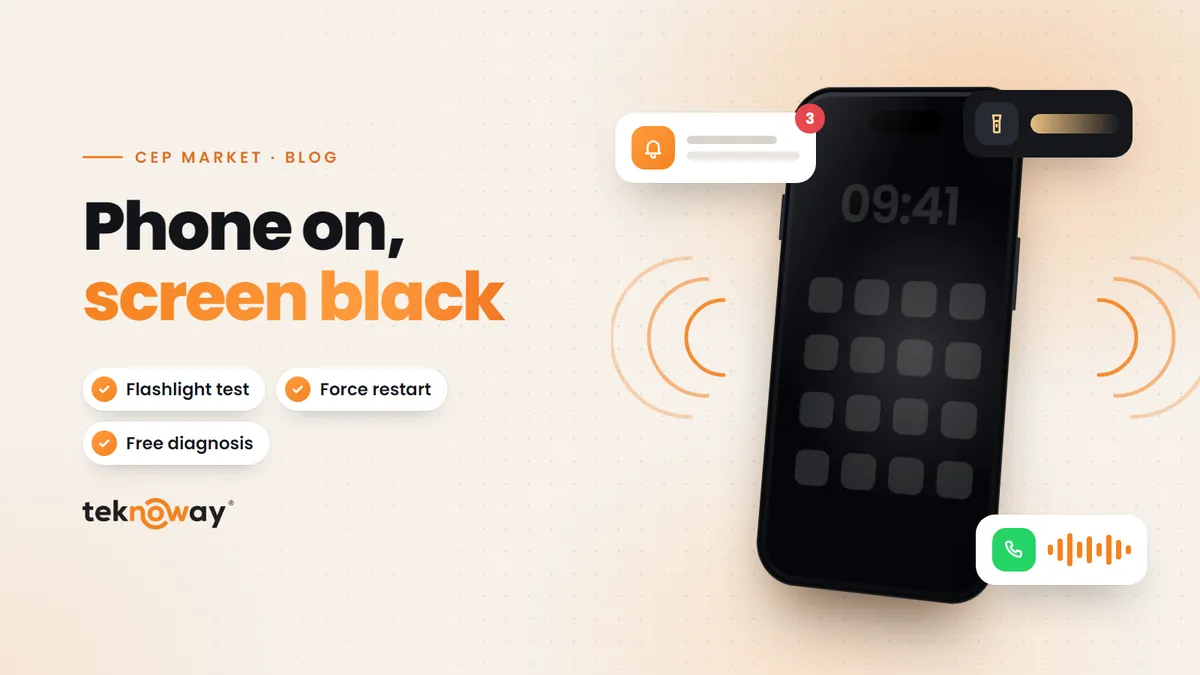
Phone works but the screen is black: what to do

If your phone rings or vibrates but the screen is black, the phone is on; the problem is the screen or its connection. Force restart and charge it first. Shine a torch close to the screen in the dark: a faint picture means a backlight fault. If it started after a drop or liquid, the screen is usually replaced.

Read article
Blog1 min read

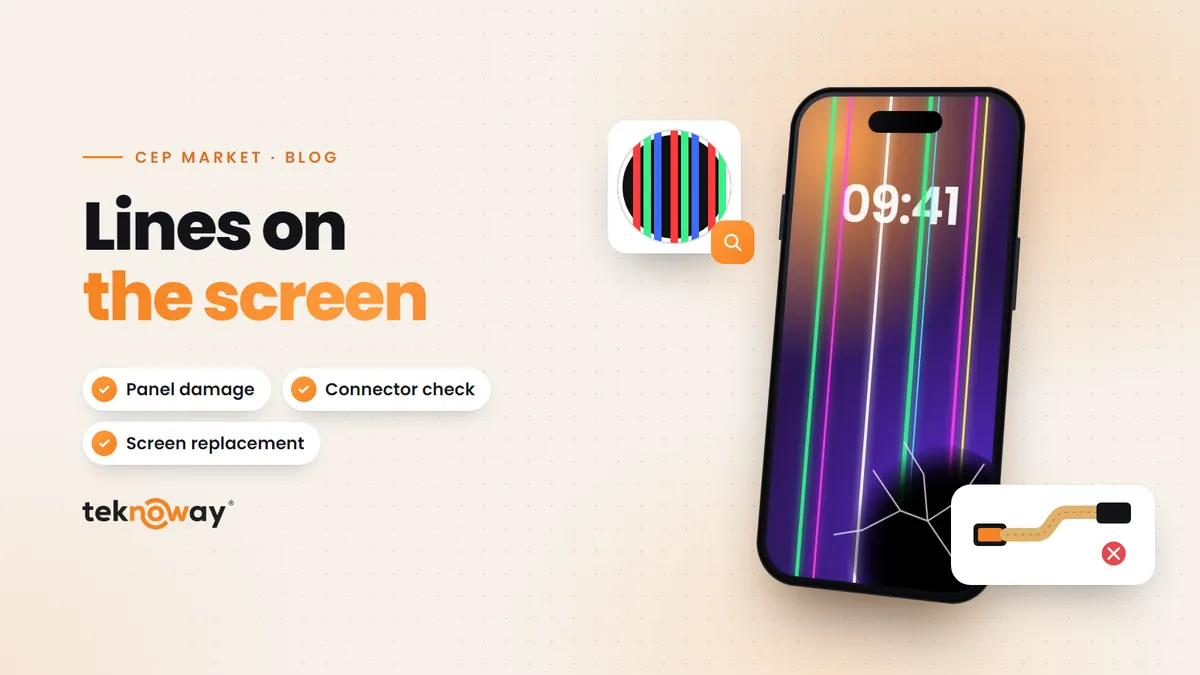
Lines on the phone screen: causes and fixes

Vertical, horizontal or coloured lines on the screen usually mean the display panel or its connection is damaged. A quick screenshot test tells you in seconds whether the problem is software or the panel.

Read article
Does your phone not detect the SIM card?

SIM tray and card reader faults are diagnosed free of charge. Send us the model and the problem on WhatsApp.